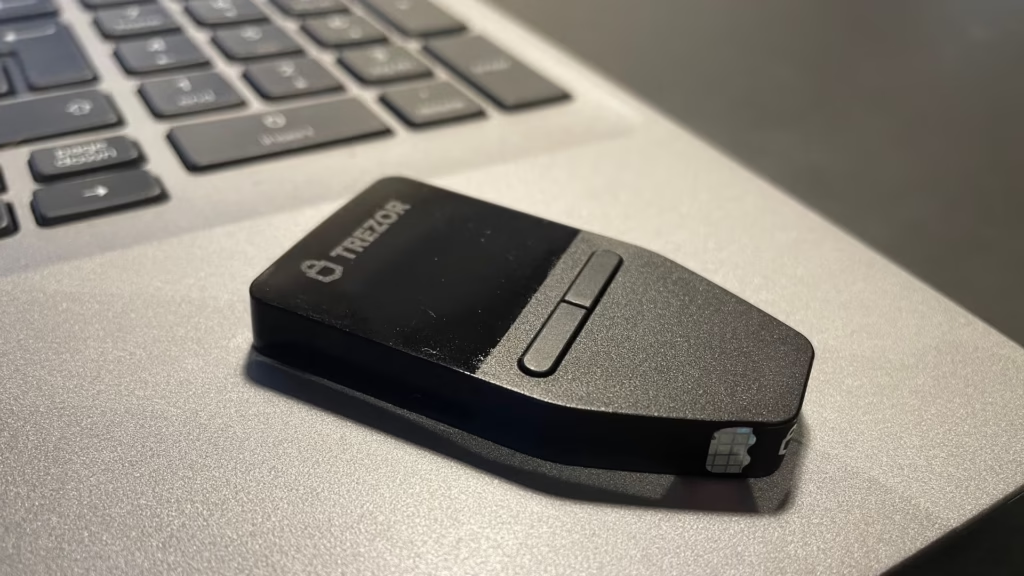
Trezor is a hardware wallet that provides a high level of security when working with cryptocurrencies in offline mode. It’s a compact device that performs secure transactions without exposing private keys to potentially compromised computers. Private keys are stored inside the device, and transaction confirmation occurs directly on it.
Interaction with Trezor devices is carried out through the Trezor Suite browser interface, which was introduced in late January 2022. This interface is easy to use for both beginners and experienced cryptocurrency users.
⚠️ Important: Purchase Trezor devices only from the official website: https://trezor.io/
✅ Supported Crypto Assets
Trezor supports more than 1500 different coins and tokens, including popular cryptocurrencies such as Bitcoin (BTC), Ethereum (ETH), Litecoin (LTC), as well as various ERC-20 tokens. This list is constantly updated, ensuring support for new assets.
Important: Make sure you only send funds to addresses supported by your Trezor device. Sending funds to unsupported addresses may result in loss of access to those funds.
? Download and Install Trezor Suite
? Setting Up Trezor Device
- Device connection: Connect the Trezor wallet to your computer using the USB cable included in the package. A lock icon and instructions to go to trezor.io/start should appear on the device screen.
- Package integrity check: Before starting setup, ensure package integrity and absence of counterfeit holographic seal.
- Firmware installation: Since the device comes without firmware, the first step will be installing the latest firmware version. To do this, click the “Install Firmware” button in Trezor Suite.
- Creating a new wallet: After firmware installation, select the “Create new wallet” option and follow the instructions on the device screen. A new unique wallet will be generated on the device.
- Recording recovery phrase: After creating the wallet, you’ll be prompted to write down the recovery phrase (Recovery Seed). This phrase consists of 24 words and serves to restore access to the wallet in case of device loss or damage. Write the words on the included Recovery Seed Card and store it in a secure place.
- Setting up PIN code: Set a PIN code for additional device protection. A matrix keyboard will be displayed on the device screen, and you’ll need to select the corresponding digits to create the PIN code.
? Receiving Funds
To receive funds, select an account in Trezor Suite and go to the “Receive” tab. The receiving address will be displayed on the device screen. Make sure you verify the full address on the device before sending funds.
✅ Trezor Advantages
Advantages:
- High level of security thanks to storing private keys in the device.
- Support for more than 1500 cryptocurrencies and tokens.
- Convenient and intuitive Trezor Suite interface.
- Ability to restore access using the recovery phrase.
Disadvantages:
- Requires a computer for setup and use.
- Not all crypto assets are supported by the device.
- Loss of the recovery phrase may result in loss of access to funds.