
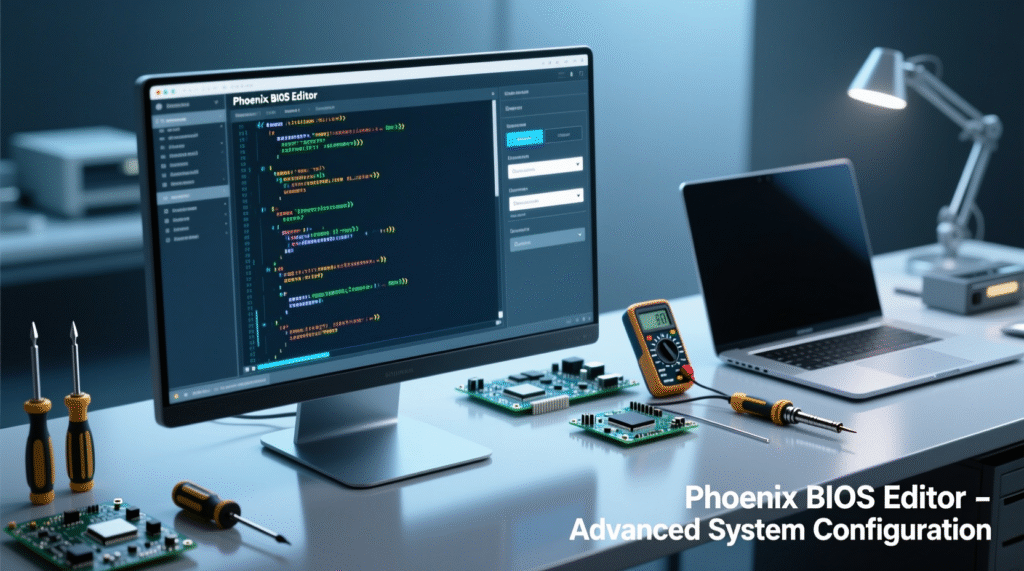
Phoenix BIOS Editor is a powerful Windows utility designed for editing Phoenix-based BIOS images. The program automatically unpacks the BIOS firmware into individual modules, allowing you to make changes to them, and then reassemble them into a single image for subsequent flashing.
Key Features
Although Phoenix BIOS Editor was not originally designed for replacing BIOS modules, it does offer this functionality. When you first open a firmware file (.WPH or another supported format), the program extracts all BIOS components to a temporary folder:
C:Program FilesPhoenix BIOS EditorTEMP.
From there, you can copy the desired module, edit it with third-party tools, and then restore it. It’s important to remember that the editor will not save the image without any changes. To work around this limitation, simply temporarily change any string value (for example, the DMI string) and then restore it—or leave it as is.
Installing the program
- Download the archive from an official or trusted source.
- Unzip the contents and run the installation .exe file.
- Accept the license agreement and follow the installation wizard instructions.
- Once the installation is complete, you can launch Phoenix BIOS Editor.
Interface and setup
The program has a simple and intuitive interface. The “Additional Features” menu allows you to configure settings related to modifying BIOS system data, including DMI strings and other hardware identifiers.
How to obtain a BIOS image
To begin modification, you need to obtain a dump of the current firmware. Phoenix provides two utilities for this:
- Phlash16 – works in the DOS environment (via command line).
- WinPhlash is a Windows version with a graphical interface and command line support. WinPhlash can automate the BIOS backup process. Example batch script:
@rem BIOS Backup
WinPhlashWinPhlash.exe /ro=BIOSORIG.WPH
@rem Проверка, был ли BIOS уже изменён
PythonPortablePython_1.1_py2.6.1Apppython CheckFlash.py WinPhlashBIOSORIG.WPH
The script saves the original firmware to the BIOSORIG.WPH file and then checks its contents for traces of previous modifications (for example, by the presence of a certain text marker).
Working with BIOS modules
Once the image is loaded into Phoenix BIOS Editor, you can:
- View and edit DMI data (information about manufacturer, model, serial number, etc.).
- Change the hardware whitelist (useful when building mining rigs or using non-standard PC configurations).
- Edit specific modules, such as MOD_5100.ROM, which often contain information about installed components.
 Important! Any errors while editing the BIOS may render the motherboard inoperable. Before flashing, always make a backup copy of the original firmware and carefully review all changes.
Key Features of Phoenix BIOS Editor
Free to download and use.
Supports modern versions of Windows.
Features a simple and intuitive interface.
Designed primarily for experienced users and developers.
Allows flexible BIOS configuration without a complete reflash.
Conclusion
Phoenix BIOS Editor is a reliable tool for those who want to deeply customize their system at the firmware level. It’s especially popular among enthusiasts, miners, and hardware recovery specialists. However, working with the BIOS requires caution: even a small error can brick the motherboard.